Short, practical tips on how Poznote works: features you may have missed, ways to organize your notes, and the little things that make everyday use smoother.
Everyday
Small habits that save time. Nothing to set up.
templates
Start notes from a template
Meeting notes, a weekly review, a project checklist: write it once as a template and reuse it in a few keystrokes.
1
Make a Templates folder
Create a folder named Templates and put the notes you want to reuse in it. Sub-folders are fine.
2
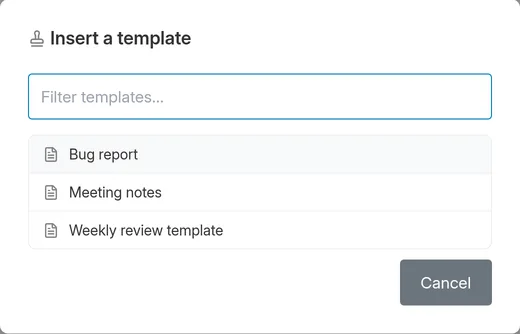
Insert a template
In a note, type /template and pick one: its content is pasted at the cursor, converted if one is Markdown and the other rich text.
3
Or start a whole project
Duplicate a template note to get a new note, or duplicate a whole folder of templates to start a project with its folders already in place.
A workspace named Templates works too, and is offered from every workspace.
Poznote keeps earlier versions of your notes as you edit them. A paragraph deleted by mistake or a rewrite you regret is a click away.
1
Open the history
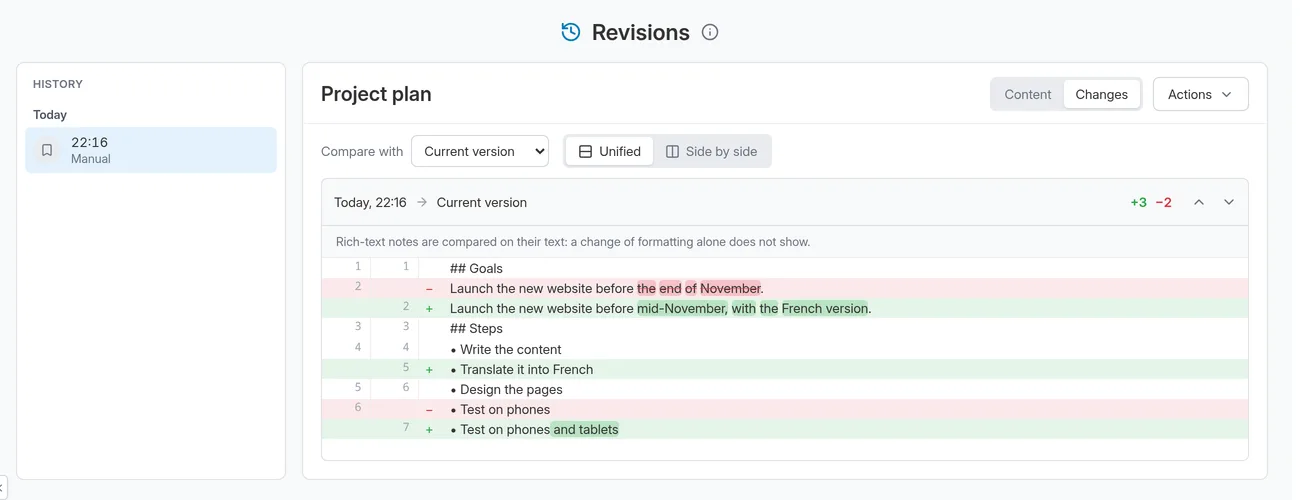
Click the history icon in the note toolbar. Versions are listed by day, and the Changes tab shows what changed, word by word.
2
Save a version by hand
Before a big change, press Ctrl + Alt + S (Cmd + Alt + S on Mac) to save one right away.
3
Restore it
Pick a version and choose Restore this revision in the Actions menu. The current state is not saved first: save a version before if you want to keep it.
A version is also saved right before the AI assistant or the MCP server changes a note. Versions are kept for 30 days.
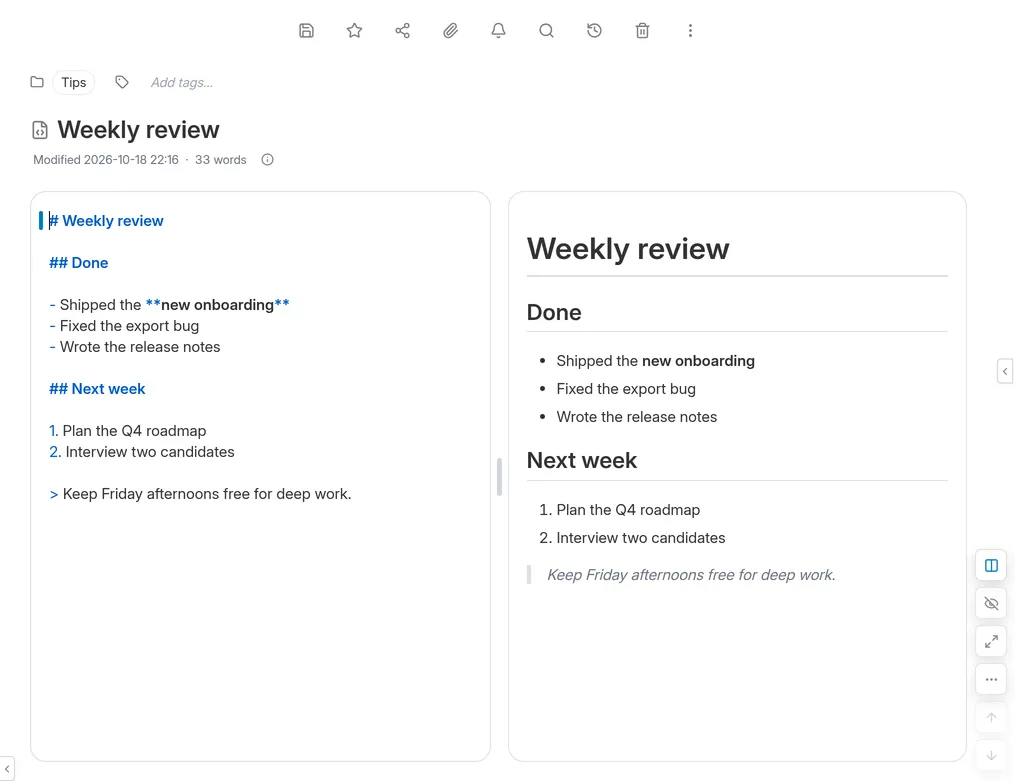
Some like to see the Markdown syntax, others would rather never see it. The view button at the bottom right of the page goes from one view to the next.
1
Classic
The note is shown formatted. The pencil switches to the editor, with all the syntax.
2
Live preview
You write in the formatted note, and the syntax only shows up where the cursor is.
3
Rich text
Like live preview, but the syntax never shows: you write as in a word processor.
4
Split
The editor and the preview side by side. Not available on a phone.
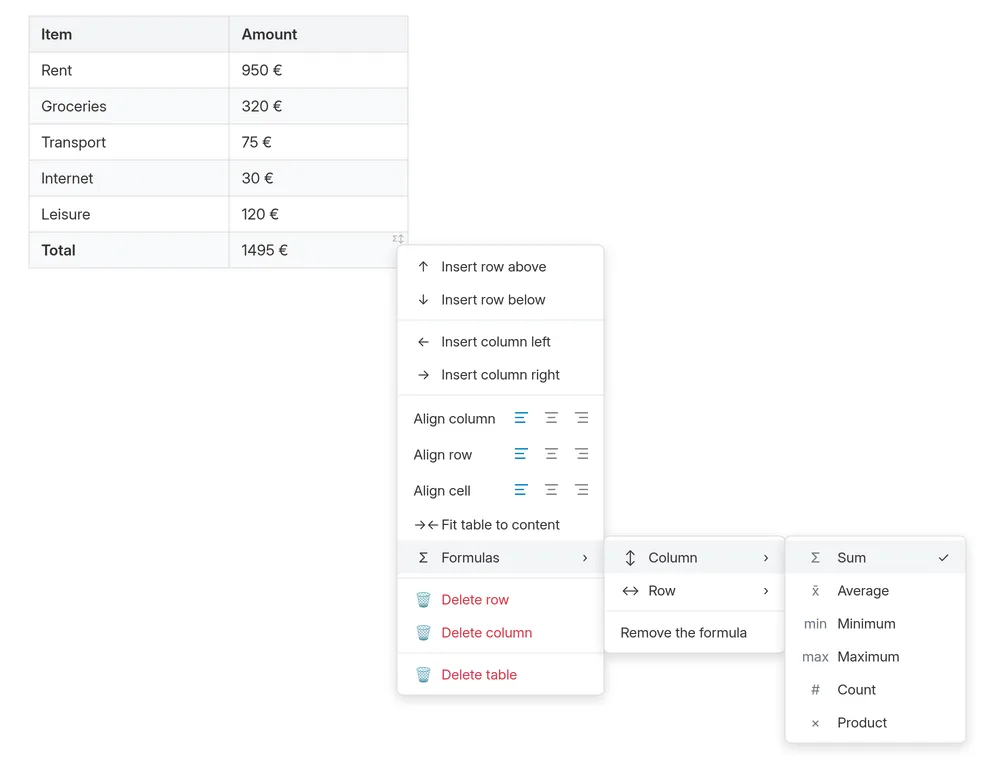
A budget, a list of expenses, hours worked: a table cell can show the sum, average, minimum, maximum, count or product of its row or column, and keep it up to date.
1
Right-click the cell
Right-click the cell where the result should go and open Formulas.
2
Choose the calculation
Pick Column or Row, then Sum, Average or another one. The result changes as soon as a number does.
3
In Markdown, type it
In a Markdown table, you can also write the formula in the cell: =SUM(col), =AVG(row), =MAX(col)…
Amounts such as 1 234,56 €, $1,234.56 or 45% are read as numbers.
drawing
Draw right inside a note
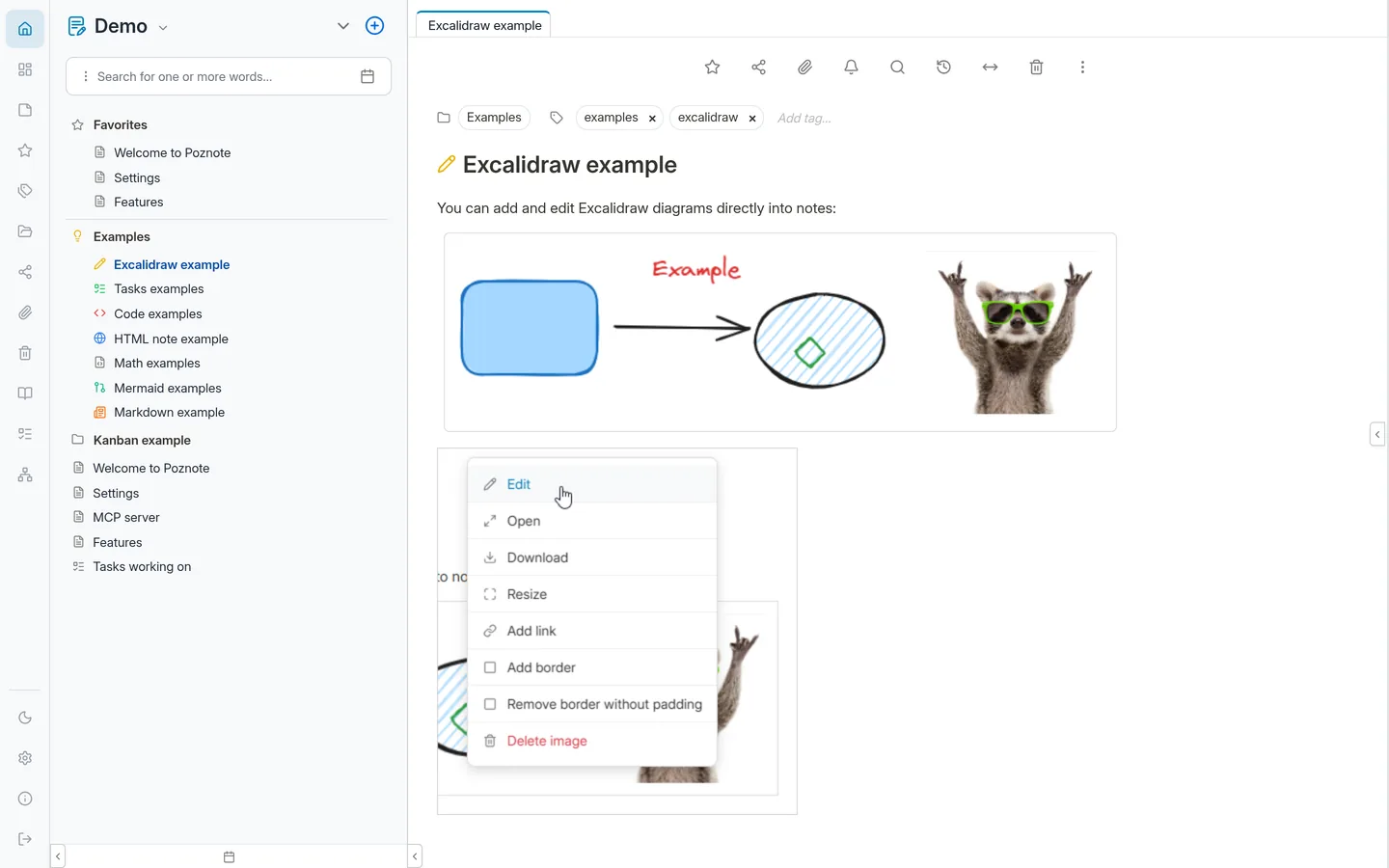
Poznote includes Excalidraw, the hand-drawn style whiteboard: sketch a diagram, a mind map or a floor plan without leaving your note.
1
Insert a drawing
In a rich text or Markdown note, type /excalidraw and press Enter.
2
Draw, then save
The Excalidraw editor opens. When you are done, click Save and exit: the drawing appears in the note as an image.
3
Edit it later
Click the drawing and choose Edit to open it again.
Excalidraw comes with Poznote and runs on your own server: your drawings go nowhere else.
sharing
Share a note with a link
Send a note to someone who has no Poznote account: they open the link in their browser, with nothing to install.
1
Create the link
In the note's menu, choose Share, then Create URL.
2
Choose who can open it
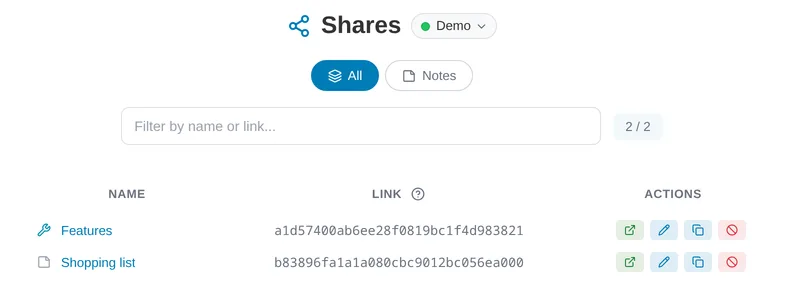
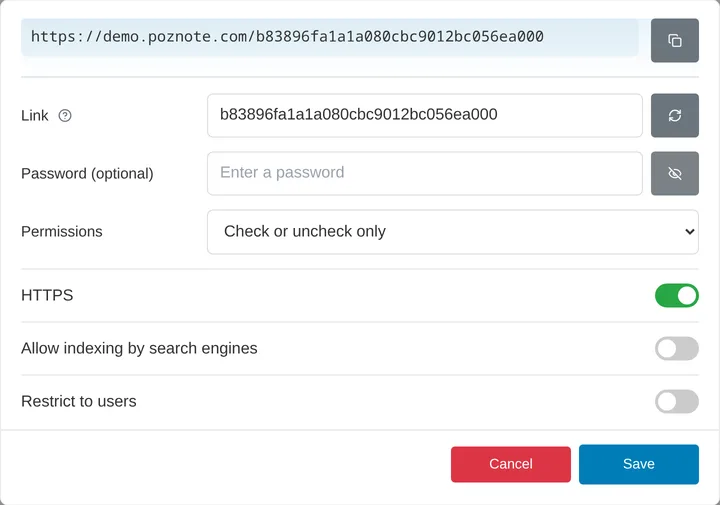
On the Shares page, the pencil next to the link adds a password, limits the link to some users of your instance or lets people edit.
3
Keep track
The Shares page of the left bar lists everything you have shared, and what others shared with you.
A shopping list, the jobs for a move, the gear for a trip: share a task list and the others tick items off from their phone, without a Poznote account.
1
Share the list
In the task list's menu, choose Share, then Create URL.
2
Let them tick
On the Shares page, click the pencil next to the list and set Permissions to Check or uncheck only. Then send the link.
3
Tick together
Everyone who has the link can check items off, and you see their changes in your list.
For a common space, share a whole workspace: everyone keeps their own account and works on the same notes.
1
Share it
In Settings > Workspaces, click Share on the workspace's row and pick the users.
2
They find it in their menu
The workspace shows up in their workspace menu under Shared with me, and they edit it like their own. Your other workspaces and your settings stay private.
3
Mention someone
Write @username in a note of the shared workspace: that person finds it on their Mentions page.
When your instance sends email, each member can receive the list of changes made by the others.
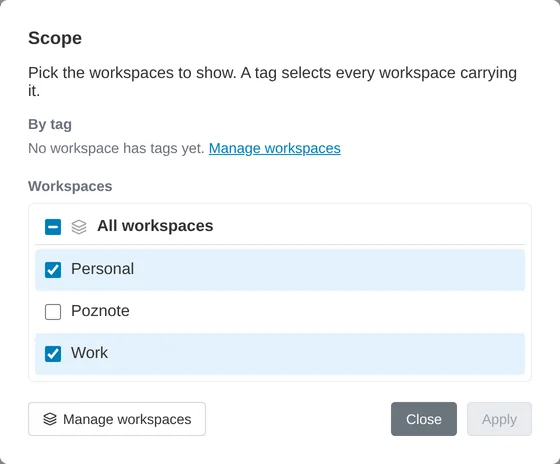
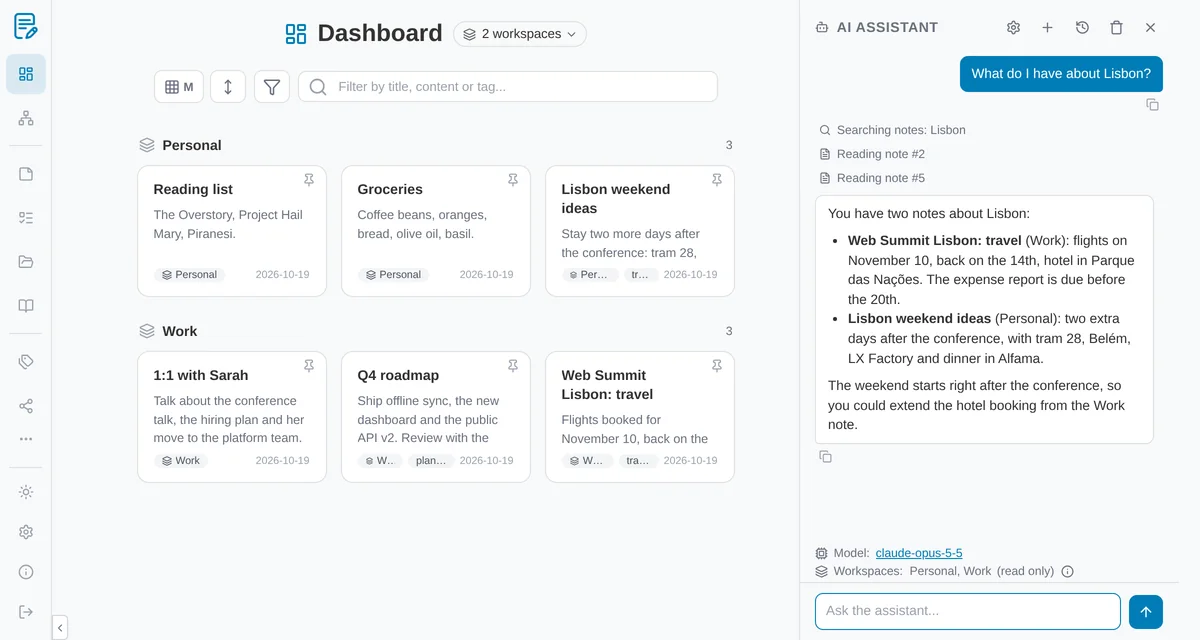
The AI assistant works in one workspace at a time. For a question that spans several, such as your work notes and your personal ones, ask it from the dashboard.
1
Show several workspaces
On the Dashboard, open the workspace menu at the top and pick All workspaces, a few workspaces, or a workspace tag.
2
Ask your question
Open the AI assistant: the line under the conversation lists the workspaces it covers. It searches and reads the notes of all of them, and says which workspace each note comes from.
3
Edit from the note
There the assistant is read only: it creates, edits and deletes nothing. To change a note it found, open the note or its workspace and ask there.
In the assistant panel, the icon next to the workspace name reminds you of this. Needs Poznote 6.122 or later.
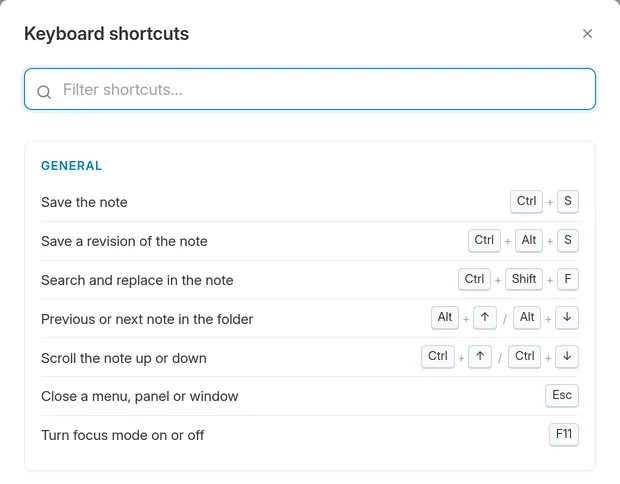
Saving, searching, going from one note to the next, formatting: most things have a shortcut, and Poznote has a guide that lists them all.
1
Open the guide
Click the … button at the bottom right of the page (More options), then Keyboard shortcuts. Type in the filter to find one.
2
A few to start with
Ctrl + S saves the note, Ctrl + Shift + F searches and replaces in it, Alt + ↑ and Alt + ↓ go to the previous or next note, F11 turns focus mode on or off.
On a Mac, Ctrl becomes Cmd and Alt becomes Option.
offline
Keep notes with you offline
On a train or anywhere without Wi-Fi, open your usual Poznote address: your favorites and the notes you changed in the last 5 days are there, ready to read and edit.
1
Choose what to keep
Choose Keep offline in the menu of a note or a folder: it stays available whatever its date, with its attachments.
2
Work as usual
Rich text notes, Markdown notes and task lists open in their usual editor, and you can create notes. Your changes wait in the browser.
3
Come back online
Changes are sent on their own. If the note also changed on the server, both versions are merged, or yours is kept as a separate copy.
It needs HTTPS. Notes are stored unencrypted in the browser: sign out on a shared computer.
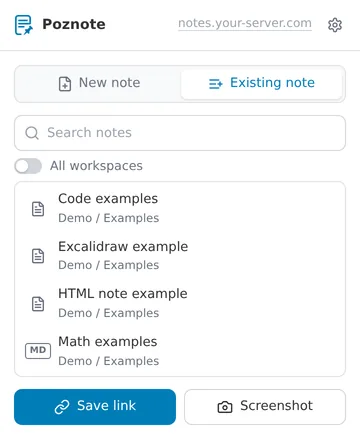
The Poznote URL Saver extension adds a Poznote button to Chrome: the page you are reading becomes a new note, or goes at the end of a note you already have, such as a reading list.
Install Poznote as an app on your phone and it shows up in the Android Share menu: a page, a link or a piece of text becomes a note, with no extension.
1
Install the app
Open your Poznote address in Chrome on Android, then in the menu choose Add to Home screen > Install.
2
Share
In any app, tap Share and choose Poznote: a note is created with the page title and a link to it.
Poznote missing from the menu? Check that it is installed as an app, not only added as a bookmark. Installing needs HTTPS.
For those who host Poznote or want to go further: a bit of setup, sometimes on the server.
ai
Run the AI assistant on your Claude Max plan
Claude Max plans come with monthly API credits: $100 a month on Max 5x, $200 on Max 20x. Point the Poznote AI assistant at them and it costs you nothing extra, as long as you stay within the credit.
1
Claim the credits
On claude.ai, open Settings > Billing and, under API credits, link a Claude Console organization. You can create one along the way. Choose it carefully: you cannot change it yourself afterwards.
2
Create an API key
In the Claude Console, open API keys and click Create key in that organization. Every key of the organization draws on the same credit.
3
Copy the workspace ID
A key that is not tied to a single workspace must say which workspace it works in, or Anthropic refuses every request with anthropic-workspace-id is required. Open Workspaces in the Console and copy the value from the ID column: it starts with wrkspc_. The Default workspace works fine. If you tied the key to one workspace when creating it, skip this step.
4
Set it up in Poznote
In Settings > AI Assistant (or My AI Assistant if your administrator allows personal keys), choose Anthropic (Claude) and paste the key. In Custom headers, add this line with your own ID:anthropic-workspace-id: wrkspc_xxxxxxxxxxxxThen click Check access and list models and pick a model.
Custom headers need Poznote 6.117 or later. Credits renew every billing cycle and do not roll over. When they run out, the assistant stops until the next ones arrive: nothing is charged unless you buy credits yourself. Free and Pro plans are not eligible. Anthropic's details
Poznote includes an MCP server, the open standard AI assistants use to reach your tools. Connect Claude Code, VS Code with Copilot, Cursor or any other MCP client, and ask in plain words: find my notes about Docker, add a task to my to-do list, sum up this week's meeting notes in a new note.
1
Check that the MCP server runs
It comes with the official Docker installation of Poznote.
2
Connect your assistant
Add the Poznote server to your assistant's MCP settings. The documentation gives the steps for Claude Code and VS Code.
3
Ask
Talk to your assistant about your notes. Poznote saves a version of a note before every change, so any edit can be undone.
The Chrome extension, a mobile app or a script do not need your account password. Give each one an app password: it only reaches the API, and you can cut off one app without touching the others.
1
Create it
In Settings > App passwords, give it the name of the app (for example Chrome extension), choose an expiration if you want one and click Create.
2
Copy it right away
The value starts with pzn_ and is shown only once. In the app, enter your usual username and paste the app password where it asks for a password.
3
Revoke it when you need to
Lost a phone or stopped using a script? Click Revoke next to its app password: that app is cut off, the others keep working. The list shows when each one was last used.
An app password cannot open the web interface, reach administration or change your account, even on an administrator account. It is also how apps connect when you sign in through SSO or have two-factor authentication on: the API then refuses your account password on its own. Available since Poznote 6.100.
If you are the only one who can reach your instance, at home or behind a VPN, Poznote can open your account directly, without username or password.
1
Turn it on (administrator)
In Settings > Admin Tools, enable Open without login and confirm.
2
Open Poznote
Any browser that reaches the instance now opens your account straight away. Apps that use the API still sign in, with an app password.
Anyone who can reach the address gets in, with no password and no two-factor code. Only turn it on if you alone can reach the instance, or if a reverse proxy in front of it handles authentication. Available since Poznote 6.115.
sharing
Open someone else's account
For a family account used by two people, for example, an administrator can let a user open another user's account, without handing it over.
1
Grant access (administrator)
In Settings > Admin Tools > User Management, give the user access to the account.
2
Switch accounts
The user switches to it from the Accounts section of the workspace menu.
The account still belongs to its owner. To share only some notes, share a workspace or a note instead.
Push your notes to GitHub, GitLab or Forgejo: you get a copy away from your server and the whole history of your notes in Git.
1
Turn it on (administrator)
In Settings > Admin Tools, enable Git Sync.
2
Connect your repository
In Settings > Git Sync, choose the provider, then fill in an access token, the repository and the branch.
3
Let it run
With automatic sync on, Poznote pulls when you sign in and pushes each time a note is created, changed or deleted. The Push and Pull buttons of the left bar do it by hand.
Each user syncs their own repository. Use a private one: notes are pushed as they are.